
Getting started with Raven Annotate
Installing
Download the latest version (1.3) for your operating system (this requires admin privileges on your computer):
Overview
The Raven Annotate application focuses on allowing the user to create, edit, review, and generally work with a list of selections made from a sound file or a sequential array of sound files.
The application currently provides two different layouts serving similar, but slightly different purposes: the Selection Editor and the Review Gallery.
Each is designed for a different purpose:
- Selection Editor – The Selection Editor’s primary focus is on creating and editing Event Selections.
- Review Gallery – The Review Gallery serves as a way to Review selections and provide further annotations.
Selection Editor
Upon starting Raven Annotate, the user is presented with the Selection Editor view. The Selection Editor has a standardized view, with a toolbox on the left and a spectrogram and Event table on the right:

The Spectrogram display provides a window into the sound file with controls to pan and zoom thru a source signal (a collection of sound files). The mouse can be used to draw selection boxes around notable artifacts and things of interest. These boxes are called Event Selections.
The Event Table sits below the Spectrogram and shows all the Event Selections a user has made. The tables lists events with columns containing the Start and End Timestamps, as well as Low and High Frequency bounds for each event. The table also allows a user to add Annotation columns.
This is where the user can begin the annotation process, by building up a list of Events, and adding Annotations to them.
There are a few different Toolboxes available to the user for use in this area:
- Configuration (the gear icon)
- FreeForm – The basic tools for creating event selections and doing some basic annotating of those selections.
- Stamp – Provides options for a stamping tool of which allows the user to quick build a list of notable events
Configuration
The Configuration tab allows the user to configure the display of the Spectrogram. The options mainly deal with turning on and off axis labels. There will potentially be more options added here in the future.
FreeForm
The FreeForm tab provides the basic tools for drawing and annotating Event Selections. This basic tool allows the user to draw selections by clicking and dragging the mouse in the Spectrogram area to create the bounds of the selection.
Here’s an example of a selection drawn that hasn’t been committed yet:

The tool panel has options for selecting which Annotation Keymap preset to use (for providing keyboard shortcuts for annotating with) and the ability to auto-fill annotation columns with values.

The ‘Keymap Preset’ label shows what Annotation Keymap is currently selected, and provides a button (keyboard icon) to access the Annotation Keymap dialog.
The ‘Add Column’ button provides an easy way to add a new annotation column to the Event table.
Annotation Keymap Dialog
The Annotation Keymap dialog:

Stamp
The Stamp tab provides a very useful tool for quickly defining resusable stamps to provide a quick and easy way to build up the list of Event Selections. The stamps can either be drawn or created from an existing selection.
Stamps are useful for creating Event selections that have the same event bounds.
Stamping Toolbox contains:
- Preset – Shows the current preset stamp collection. Clicking on the dropdown provides a menu where the user can:
- Load a stamp collection
- Save a stamp collection
- Delete a stamp collection
- Export the current stamp collection
- Import a different stamp collection
- Create Stamp buttons:
- Draw New Stamp (switch into regular drawing mode for building a ‘template’ to make the stamp from)
- Create from Selection (creates a new stamp from whatever the current selection is)
- Stamp list area:
- Lock frequency for All – locks each stamp to its defined frequency range and provides a set of rails to drag selection boxes along
- Sort By – Sorts Stamp list by specified criteria
- List of all stamps created
Stamps in the Stamp List:
Review Gallery
The Review Gallery serves as a way to review Event selections and provide further annotations on them.
The Review Gallery is very similar to the Selection Editor, but adds a customizable Tile gallery allowing the user to see a bunch of Event Selections at the same time. This provides a way to more quickly move thru selections for Annotating and Reviewing.
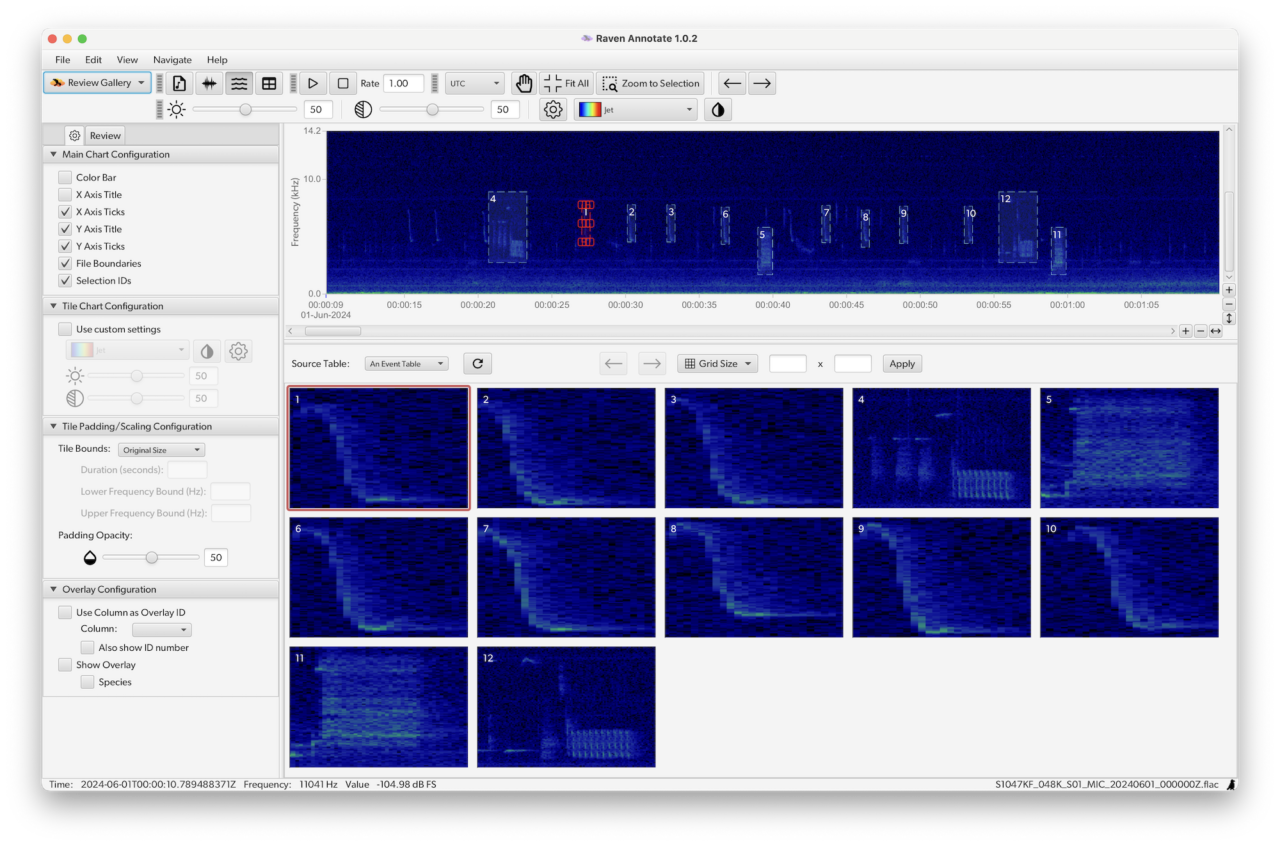
Configuration (the gear icon)
Review Toolbox
- Shows currently selected (or last selected) tile
- Provides navigation and annotation buttons
- Navigation buttons move to prev and next selections
- Annotation buttons show keyboard shortcuts from currently selected keymap + column.
- Shows basic details about the selection
- Duration, Start Time, Frequency Range
- Shows current Annotation Keymap and provides button to access that dialog.
- Allows selection on an Annotation Column and then lists available key shortcuts for annotating the values.
- Shows list of event #s that are selected.