Image Description and Alt Text Guidelines
Why Use Image Descriptions and Alt Text?
Image descriptions provide text-based information about images to increase the accessibility of your content. Screen readers read alt text and image descriptions providing users with vision impairments, such as low vision and blindness, with essential information such as text, links, and image details. For people with some types of cognitive disabilities or vision impairments who don’t use screen readers, they might miss the meaning of images or graphics when alt text or image descriptions are not used.
Definitions
Image Descriptions
An image description is a detailed description of any accompanying visual that provides full, text-based access to the same key information in the visual content. Unlike alt text, image descriptions can include more detail. As Perkins School for the Blind explains, “alt text tells someone that there’s a puddle on the floor, and an image description tells someone that the puddle on the floor is in the middle of the floor and it’s orange juice.”
Alternative Text
Alternative text (alt text) describes basic details of an image that are embedded within an image on a webpage. Screen readers automatically read alt text in place of any images on the page and if the corresponding image fails to load the alt text is displayed. Alt text is also indexed by search engines, improving the ability to find and display content.
For more information on use of alt text on websites please visit Web Accessibility in Mind
Informative Images
Informative images contain information necessary to understand your content. With informative images, it’s particularly important to include alt text and image descriptions so that anyone can access the content regardless of ability. See the Web Accessibility Initiative for examples.
Decorative Images
Decorative images are simply used for visual effect, adding no new information or context outside of visual appeal. They might reiterate what’s said in text, but they don’t add new information unavailable outside the visual. Because decorative images don’t add any information, alt text can be replaced with a null, or, “”. This helps keep clutter off the page for screen readers.
For more information on types of images and specific advice on how to accommodate each type of image please visit the Web Accessibility Initiative.
Alt Text and Image Description Tips
- Image descriptions should be descriptive but concise—aim for 280 characters or less.
- Include anything necessary to understand the image. You may need to describe features in an image such as placement of objects, image style (painting, graph), names of people, clothes (if they are an important detail), animals, placement of text, emotions, or surroundings. You may also want to describe facial expressions of people in the photo, especially when those expressions add extra meaning to the image.
- If an image has text in it, make sure to write out the image text verbatim. Use proper spelling, capitalization, spacing, and grammar. Include text in image in alt text as well.
- Avoid obvious details, flowery or poetic language, descriptions of colors or emojis that are not relevant to understanding the image, and details that are not the focus of the picture.
- Avoid sight-related terminology, for example “you can see a car” or “a car is visible.”
- Most of the time, there’s no need to include “photo of” or “illustration of” in the opening of the image description.
- If the image is also a link, make sure that the alt text describes the function of the link, rather than the image. Read more about images as links.
- Never duplicate the image description exactly in the alt text, or vice versa.
- As well as using alt text options, include your image description in the body of your text. This ensures your image description is accessible to everyone, regardless of whether they use a screen reader.
- Include image descriptions using the format [Image Description: ] below any social media post text to keep posts clear and easy to access.
- For more information on adding alt text see the help sections on Facebook, Instagram, and X/Twitter.
Examples of Describing an Image
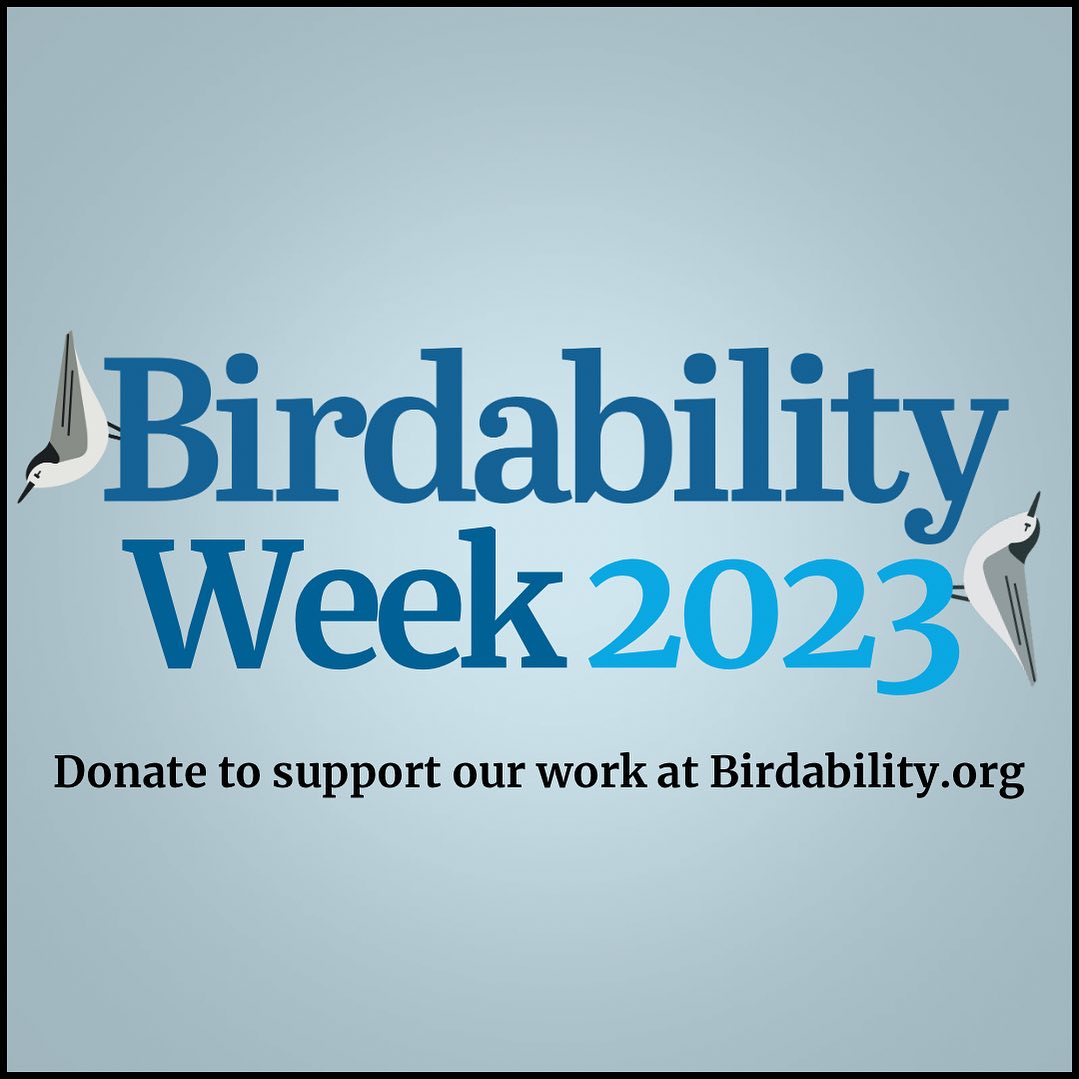
View the BirdabilityWeek 2023 Instagram Post
[Image Description: Large blue text in the center reads “Birdability Week 2023” There is a White-breasted Nuthatch logo positioned on each side of the text as if they are clinging to it. Beneath is smaller black text that reads “Donate to support our work at Birdability.org]
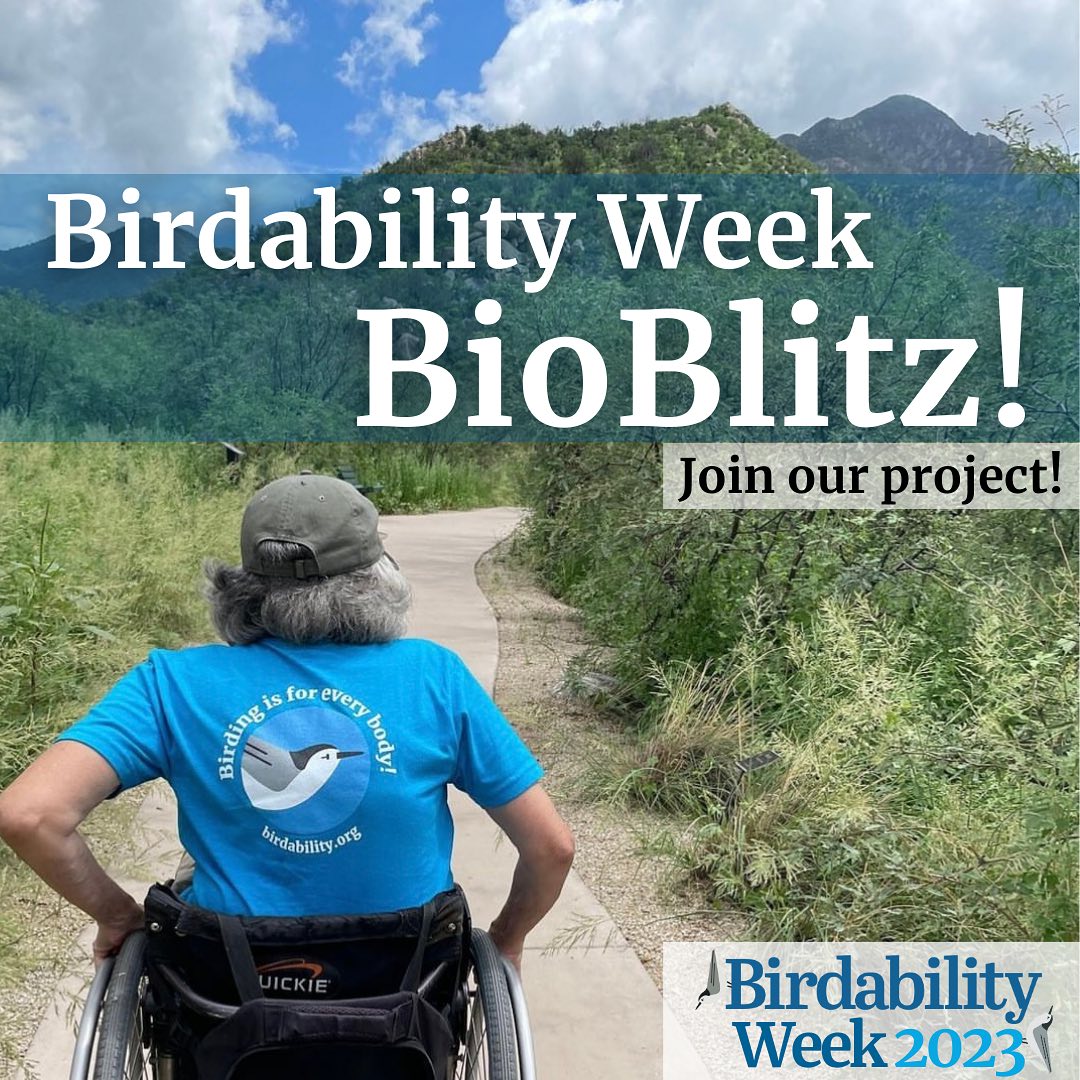
View the Birdability Week BioBlitz Facebook Post
[Image Description:
First slide: an image of a wheelchair user traveling a paved path surrounded by plants with trees and a blue sky in the background. Text above reads “Birdability Week BioBlitz! Join our project”. The Birdability Week 2023 logo sits in the bottom right corner
Second Slide:
Large text at the top reads “Birdability Week BioBlitz! Join us from Oct. 20-22”
In the center, text reads:
1. Create an iNaturalist account
2. Join the Birdability Week BioBlitz project
3. Find an accessible outdoor space
4. Log any and all nature sightings to your iNaturalist account
5. The plants, bugs, critters, and birds you find will be added to the Birdability Week BioBlitz project
At the bottom, text reads:
“View a how-to video on our YouTube page! A link to join this project is in our bio and at Birdability.org!”]